

NoteBurner Netflix Video Downloader FAQs
For Windows Users: Install the NoteBurner Netflix Video Downloader for Windows on your PC. Then launch NoteBurner. Click the Menu icon (on the upper right) > Register. There will be a registration popup dialog, where you can copy and paste the registration email and license code.
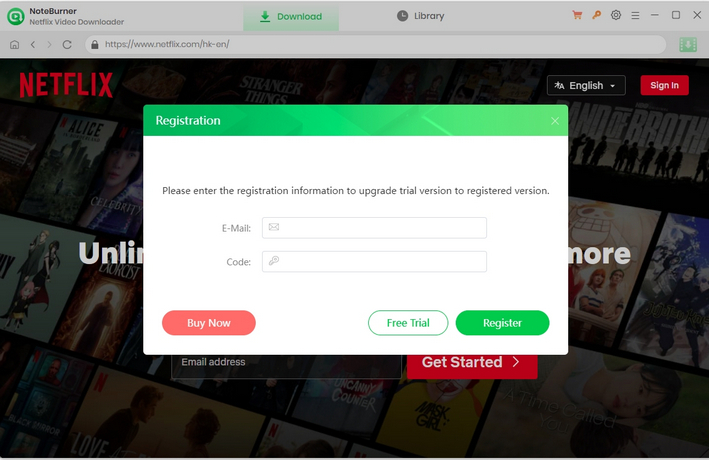
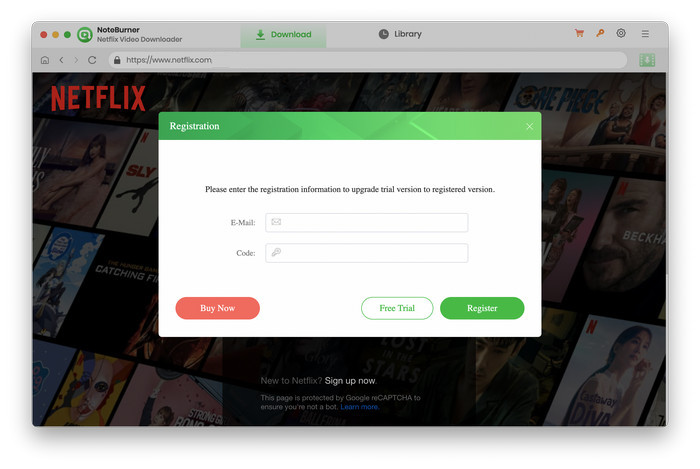
For Mac Users: Install the NoteBurner Netflix Video Downloader for Mac on your Mac. Then launch NoteBurner. Click the  icon or the "
 " icon (on the upper right) > Register. There will be a registration dialog pops up where you can copy and paste the license information here.
1. Please make sure you are running the right program.
2. The registration entry is case-sensitive. Please make sure you do not insert any blank after the registration email and license code.
3. If your license has been expired, please check if your license has expired. If so, please renew your license.
4. Should the problem persist, please contact us by e-mail at support@noteburner.com for help.
It's the limitation of the trial version. To unlock the restriction, please purchase a license. If you'd already bought a license, please register the program to get access to the full version. Please also check if your license has expired. If so, please renew your license.
Please right-click the program icon and select “Run as administrator" in the dropdown list to launch NoteBurner. Then please click the Menu button and select Register, input your registration email and code to the registration box.
NoteBurner Netflix Video Downloader is a professional video downloader tool which supports to download Netflix movies and TV shows in different video qualities, and all downloaded videos can be transferred to any device for offline viewing.
NoteBurner offers three kinds of subtitles encoding ways to meet users‘ needs for playing video on different media players or devices. The mode "External subtitles" will help you save subtitles as separate files.
"Internal subtitles" will make the subtitles be built into the output video, which will allow you to save multiple languages subtitles and switch as needed while playing the video on some players like VLC Media player.
If your media players or devices don't provide subtitle options or support to add subtitle, "Hardcode subtitles" is a great option to help you make the subtitles be burned onto your video. But please note that you can save only one language into the video at a time.
NoteBurner supports hardware acceleration with Intel/NVIDIA/AMD graphics cards, which will enable you to run the program more smoothly and speed up the download process. To get the best performance, please make sure you have the latest graphics driver installed on your computer. Here is how to check and upgrade the graphics cards:
1. Right-click the Windows Start menu and choose "Device Manager", find "Display adapters", right-click your graphics card and select "Update driver" in the drop-down list.
2. Sometimes driver upgrades might end in failure. No worries, you can also install the latest graphics driver from your graphics card manufacturer's website: Intel / NVIDIA / AMD (choose the exact one according to your computer). After upgrading your graphics driver, please reboot your computer to activate it.
NoteBurner supports downloading Netflix videos in up to 1080p quality. The actual output quality depends on the video title and the quality available when streaming the video on Netflix.
Note: If a title is only available in a lower resolution on Netflix, NoteBurner cannot download it in a higher resolution.
If you have selected the appropriate output quality but the downloaded video still appears blurry or has a lower resolution, please play the video in the Chrome, and press the key combination “Ctrl + Alt + Shift + D”. There are some parameters of the video show on your screen like the following picture, please find the information marked with the red circle, which displays the quality of the video that you are playing. Please capture your screen as below, send the screenshot, the video's URL, and log files to us for analysis.

Please make sure the link is copied from the Netflix web player and the video can play properly. Or you can try searching by keyword or the video name.
If you experience a download failure, try the following troubleshooting steps to resolve the issue:
1. Update the software to the latest version.
- In the software, go to Menu > Check for Updates.
- You can also download the latest version from the Download page or the download link for your specific program.
2. Try downloading in smaller batches.
- If you are downloading multiple videos, try downloading fewer files at a time.
3. Check your account status.
- Make sure you can sign in to your account normally through a web browser.
- Make sure your subscription is active and valid.
- Try signing in to or out of your account in the software, then check whether the video plays normally in the built-in browser.
4. Check your IP address and regional restrictions.
- If you are using a VPN, try disabling it or switching to a different VPN server/region.
5. Contact customer support if the issue persists.
- Go to Menu > Feedback in the software.
- Clearly describe the issue, including what happened and which troubleshooting steps you have already tried and their results.
- Provide relevant screenshots or screen recordings, the video URL, login cache (if possible), and software logs to help us investigate the issue.
If you follow the above methods and the problem is not resolved, please send the following information to our support email (support@noteburner.com) for further analysis:
- What is your computer OS?
- Which Netflix plan did you order?
- Are you downloading Netflix Movies or TV shows?
- Does this happen to certain videos or all videos? Please tell us the name or URL of the videos you want to download.
- Please send the log files to us, which you can find by clicking the Menu button > Open log file. You will see a logs folder and please send all files in that folder to us.
Haven't resolved your problem after trying the above methods? Feel free to contact us via Email: support [at] noteburner.com (replace [at] as @ before sending message).
